Welcome to FairLedger
FairLedger helps co-parents track shared expenses, support payments, custody schedules, and communication, all in one tamper-evident record.
This guide walks you through everything in about 10 minutes. Jump to any section using the navigation on the left.
Overview
FairLedger is designed for co-parents, but provides immediate value even if you're the only parent using it today. It keeps a jointly acknowledged, tamper-evident record of expenses, support payments, and custody, so you have documentation that holds up, without the drama of texts and spreadsheets.
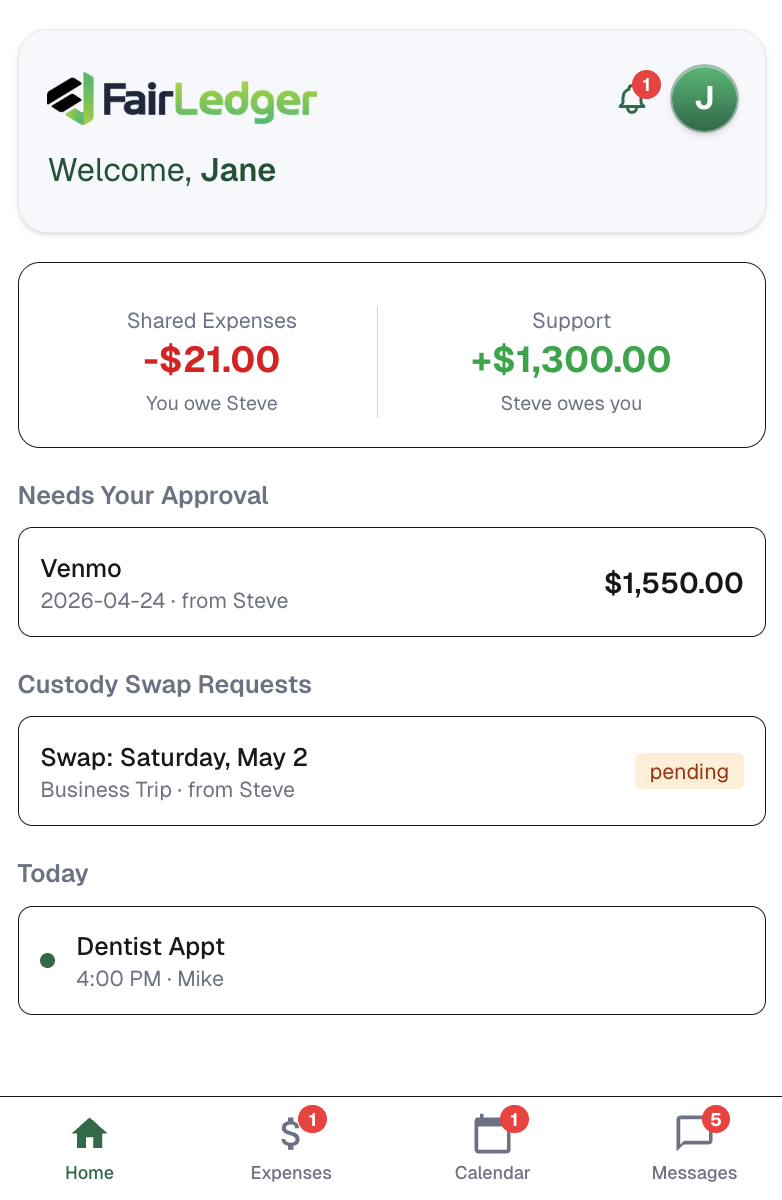
Expense Ledger
Track shared child-related costs: medical, school, activities, childcare. Submissions require co-parent approval before affecting the balance.
Support Ledger
Track court-ordered obligations like child support or alimony, kept separate from shared expenses. Payments require co-parent verification.
Family Calendar
Visualize your custody schedule, log events, and manage swap requests, all with a shared audit trail.
Conversations
Messages attached directly to the transaction, event, or swap they relate to, keeping context where it belongs.
Main Concepts
A quick orientation to the core ideas behind FairLedger before diving into the details.
Two Ledgers
FairLedger maintains two separate running balances: the Expense Ledger (blue) for shared child-related costs, and the Support Ledger (indigo) for court-ordered financial obligations. They're tracked independently so neither obscures the other. Expenses accumulate into a running balance over time; you don't need to settle each one individually. Pay when it makes sense for both of you. → Transactions
Approval & Verification
Shared expenses must be approved by your co-parent before they affect the balance. Payments, whether expense reimbursements or support payments, must be verified (confirmed received) before they count. Nothing hits the ledger until both parties acknowledge it. → Approving & Disputing
Recurring Transactions
Any obligation that repeats monthly: child support, alimony, regular daycare. These can be automated as a recurring transaction. FairLedger creates and posts it on a set day each month. → Recurring Transactions
Embedded Messages
Every transaction, calendar event, and custody swap has its own notes thread. Say it in FairLedger, not a separate text thread, so the context lives with the record it belongs to. → Conversations
Custody Calendar
A shared view of your custody schedule with color-coded days, event tracking, and a formal swap request flow, all with a complete audit trail. → Family Calendar
Account Setup
One parent creates the account and invites the other. The full experience requires both parents; once connected, every transaction creates a shared, verified record.
- 1
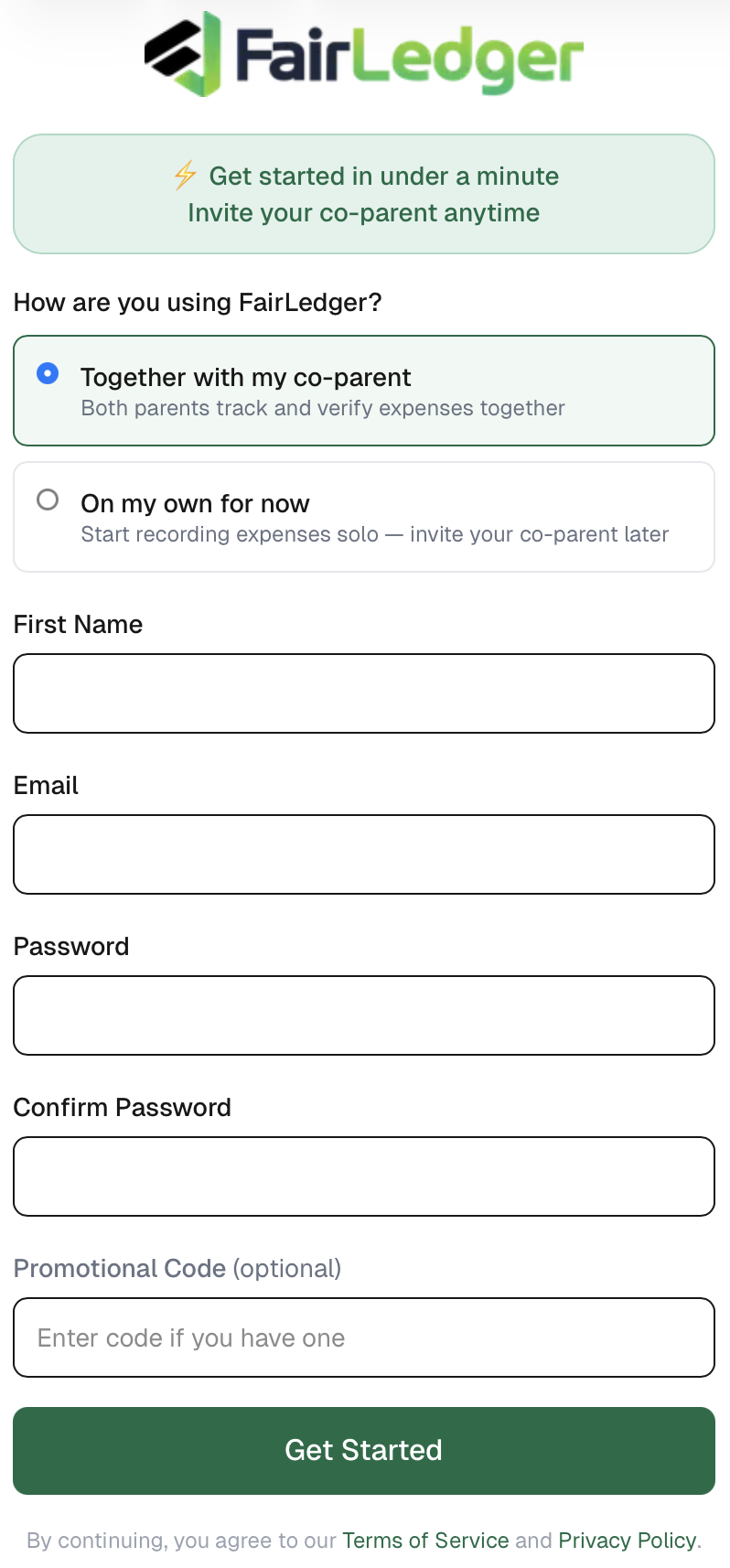
Create your account
Go to app.fairledger.app and sign up. Your 30-day free trial starts immediately, no credit card needed.
- 2
Choose your setup mode
Select Together with my co-parent if you're ready to invite them now, or On my own for now to start recording solo and invite later.
- 3
Invite your co-parent
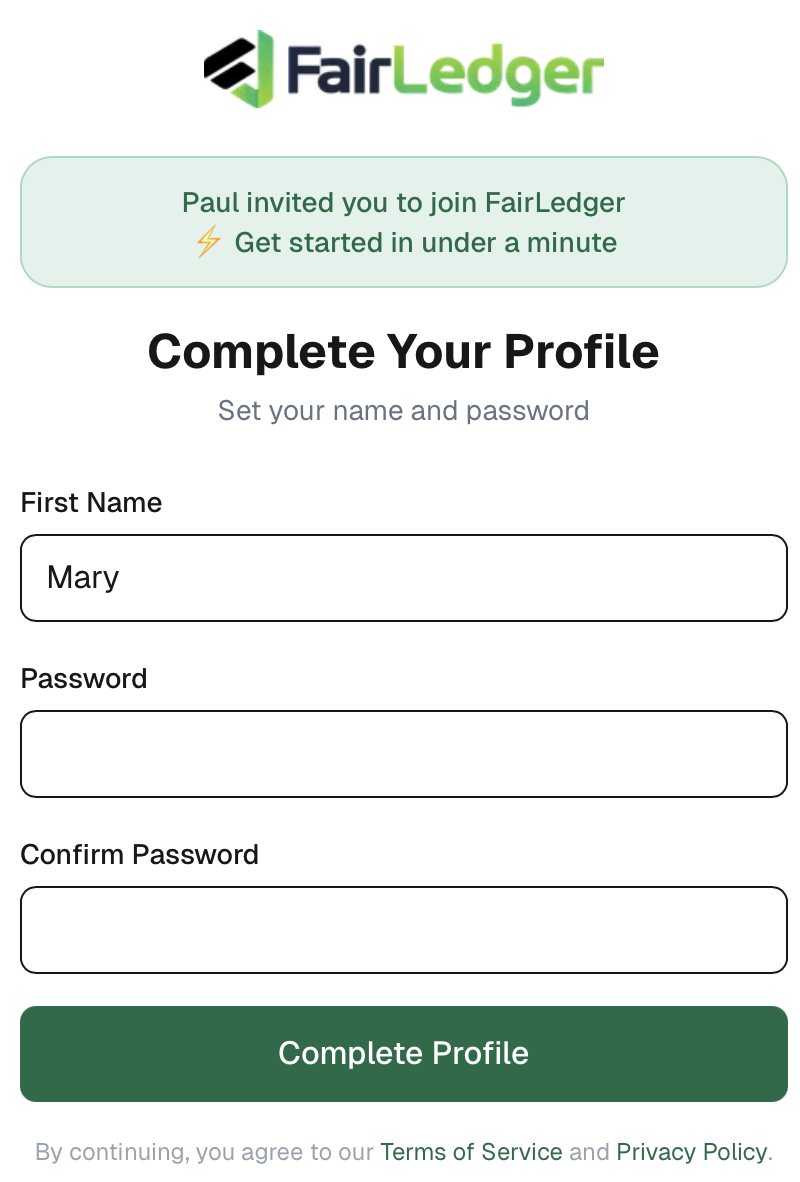
Enter their email address. They'll receive an invitation link and create their own account. Once they join, your shared ledger activates and all new entries require mutual acknowledgment.
- 4
Add your children (optional)
From Settings → Children, add each child's name to associate expenses and events with a specific child.
⚡ Using solo mode?
Solo entries are labeled Solo and visible only to you. When your co-parent joins, your ledger transitions to duo mode; new entries go through the approval process, and your solo history stays visible as a reference.
Transactions
FairLedger has two separate ledgers, each with its own transaction types. Tap the + button on the relevant screen to add a transaction.
Expense Ledger
Tracks shared child-related costs and reimbursements. Tap + on the Expenses screen to add an entry.
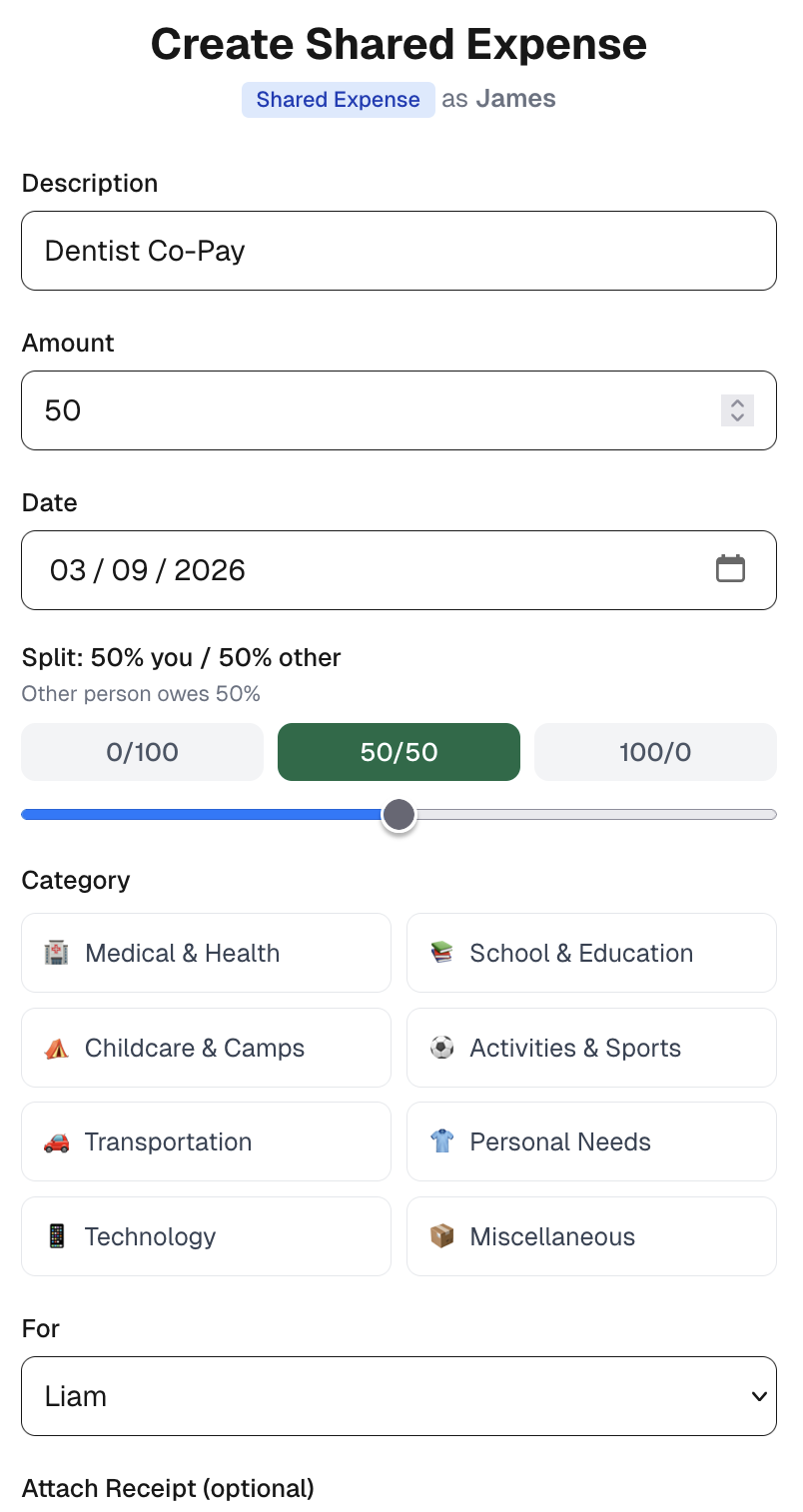
Any cost shared between both parents: medical, school, activities, childcare. One parent submits; the other approves. Affects the Expense Balance once approved.
Examples: dental appointment, soccer cleats, school supplies, summer camp
Records a payment made to reduce the expense balance, via Venmo, Zelle, cash, or any method. FairLedger doesn't process payments; it records that one was made. A single payment can cover multiple outstanding expenses; it reduces the overall balance, not a specific transaction. The recipient must verify receipt before it affects the balance.
Examples: "Sent $300 via Zelle on June 1st", "Paid in cash at pickup"
Corrects a previously approved expense without deleting the original record. Use when the final amount differs from what was initially submitted.
Examples: insurance covered part of a medical bill after the fact, returned item
Support Ledger
Tracks court-ordered financial obligations separately from shared expenses. Tap + on the Support screen to add an entry.
A recurring financial obligation, typically child support or alimony. Recorded as accrued automatically; no approval required. Can be set up as a recurring monthly entry.
Examples: monthly child support, alimony payment
Records a payment made against the support balance. A single payment can cover multiple accrued obligations; it reduces the overall Support Balance, not a specific entry. The recipient must verify receipt before it affects the balance.
Examples: "Monthly support — May", "Alimony via direct deposit"
Corrects a previously recorded support obligation without deleting the original. Use when the obligation amount changes or was entered incorrectly.
Examples: support amount modified by court order, correction to a prior entry
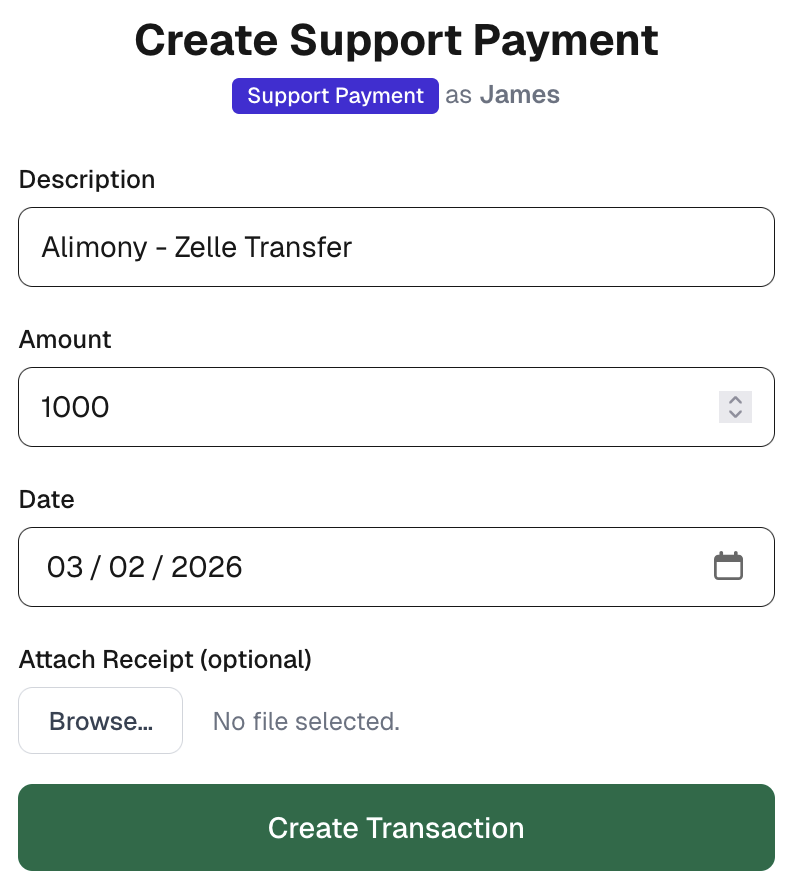
Field reference
A clear label, e.g. "Dentist - June checkup" or "Child support — May 2026".
The full cost of the item, not just your share.
Select who actually paid; this determines the direction of reimbursement.
How costs are divided. Common presets: 50/50, 0/100, 100/0, or use the slider. Applies to Shared Expenses only.
Attach a photo or PDF from the transaction detail screen after saving.
Approving & Disputing
When a transaction is submitted, it enters Pending status and does not affect any balance until the other parent responds. The action label differs by transaction type:
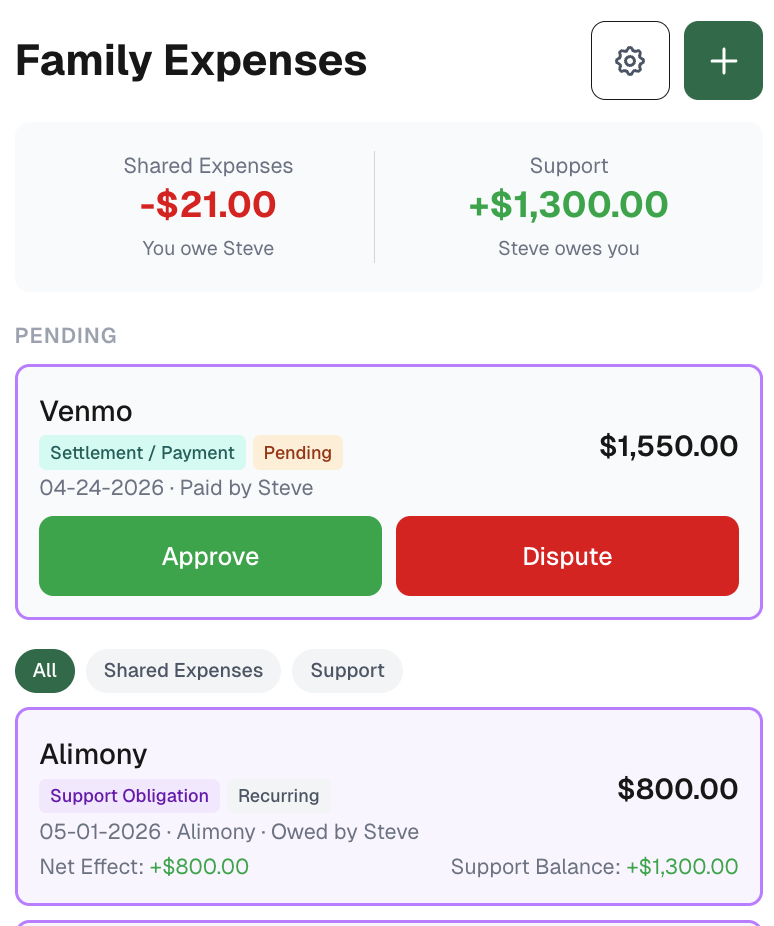
Shared Expenses → Approve or Dispute
You're confirming the expense is valid and agreed-upon. Tap Approve to accept it into the ledger, or Dispute to reject it with a reason.
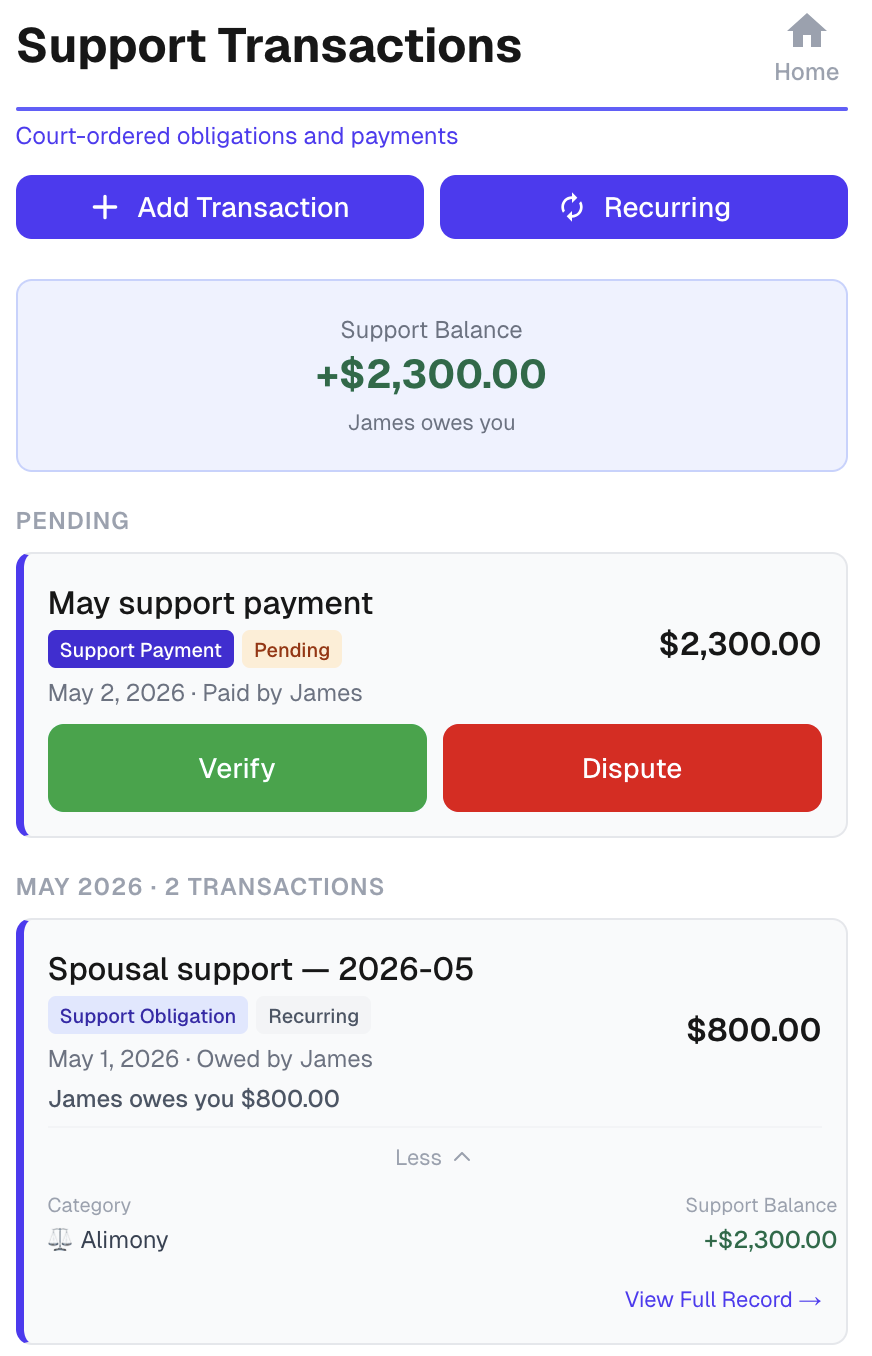
Expense Payments & Support Payments → Verify or Dispute
You're confirming you received the payment. Tap Verify to confirm receipt, or Dispute if the payment wasn't received or the amount is wrong.
Support Obligations → No action required
Support obligations accrue automatically and are added to the Support Ledger without requiring approval from either party.
📋 Important to know
- Only the other parent can approve, verify, or dispute; you can't confirm your own submissions.
- Once approved, verified, or disputed, the status is final. Use an Adjustment to correct an approved expense amount.
- Pending transactions don't count toward any balance until the other parent responds.
- You don't need to respond to every expense before new ones are added; the balance accumulates continuously.
⚡ Solo mode
In solo mode, transactions are automatically recorded without approvals; there's no co-parent to confirm with.
Recurring Transactions
Set up recurring transactions for anything that repeats monthly: child support, alimony, or regular shared expenses like daycare. The recurring feature is available on both the Expenses and Support screens.
- 1
On the Expenses or Support screen, tap the Recurring button.
- 2
Tap Add Recurring Transaction and configure the type, amount, and which day of the month it posts.
- 3
Each month, FairLedger creates the transaction automatically. You'll be notified when it posts.
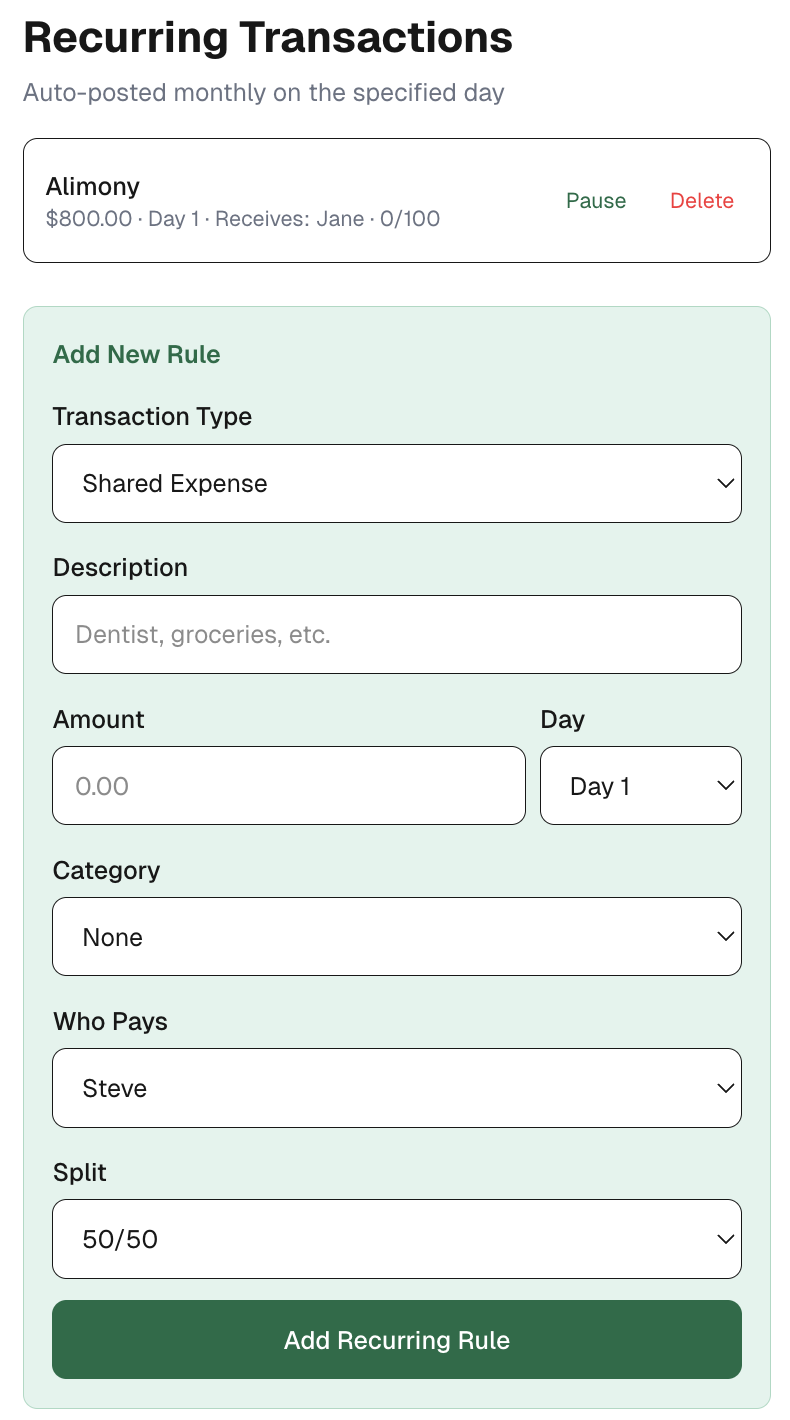
💡 Tip
Set up child support as a recurring Support Obligation and it will accrue on the 1st of each month automatically, creating a clean, consistent record without manual entry.
Family Calendar
The calendar gives both parents a shared view of the custody schedule, events, and activities. Days are color-coded by who has custody.
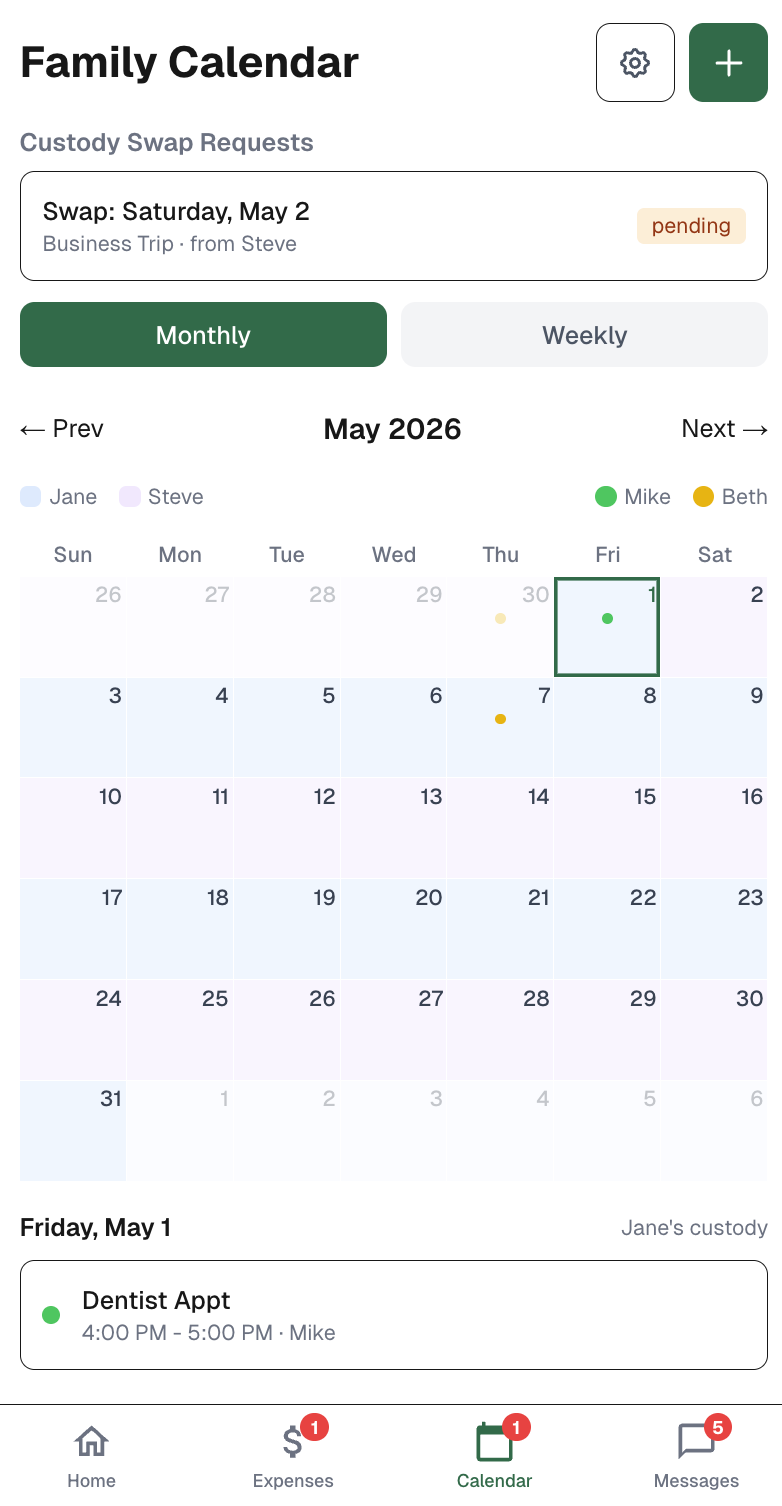
Setting up your custody schedule
Tap the Custody Schedule button on the Calendar screen to configure your custody arrangement. Choose from two modes:
- •Fixed alternating: a regular weekly, bi-weekly, or monthly rotation with a defined start date
- •Flexible: set a default custody parent and mark the other parent's custody periods individually, ideal when visits follow an irregular or long-distance schedule
Adding events
Tap any day on the calendar to add an event: doctor's appointments, school activities, sports, travel. Events can be tied to a specific child and set as recurring weekly.
💡 Tip
The calendar starts gray until you configure your custody schedule; that's by design. It's better to start with accurate information than a default that may not match your arrangement.
Custody Swaps
Either parent can propose a custody swap for one or more days. The other parent accepts or declines, and the calendar updates automatically with a complete audit trail.
- 1
From the Calendar screen, tap Custody Schedule, then tap Request Custody Swap.
- 2
Select a date range, a single day or multiple days. A live breakdown shows which days are changing custody and which are already scheduled correctly.
- 3
Choose who gets custody for those days, add a reason, and submit.
- 4
Your co-parent receives a notification and can accept, decline, or reply with a message. If accepted, the calendar updates immediately.
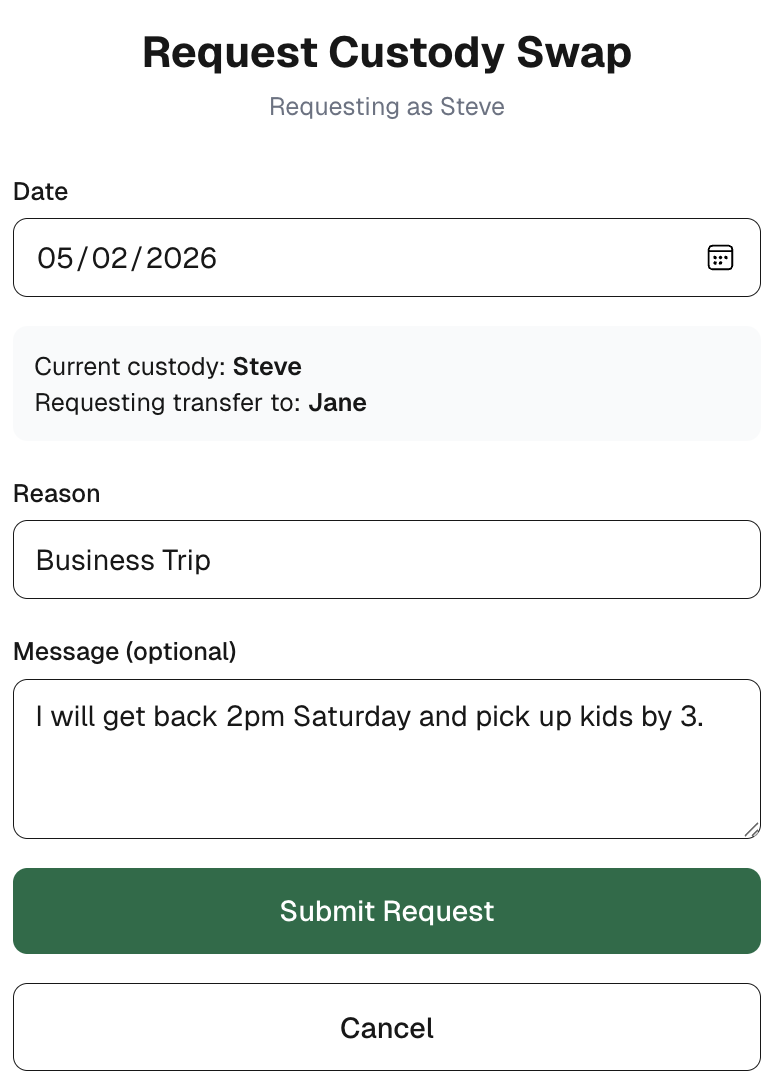
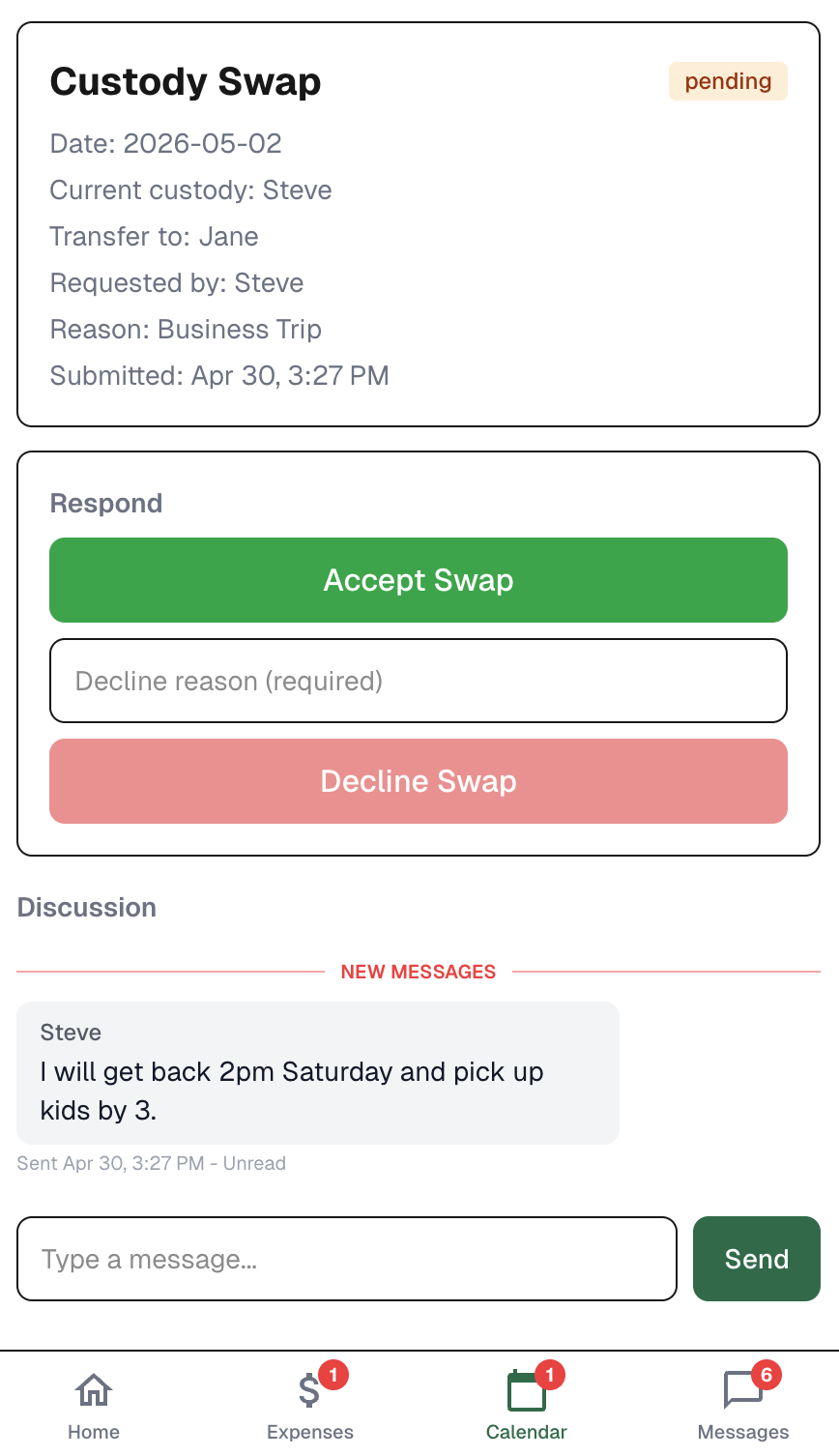
💡 Either parent can initiate a swap request on any day; you don't need to currently have custody of those days. Swap requests apply to fixed alternating schedules only. If you use a flexible schedule, adjust custody periods directly via Custody Schedule instead.
Conversations
FairLedger keeps all communication in context. Messages are tied directly to the expense, support transaction, event, or swap they relate to.
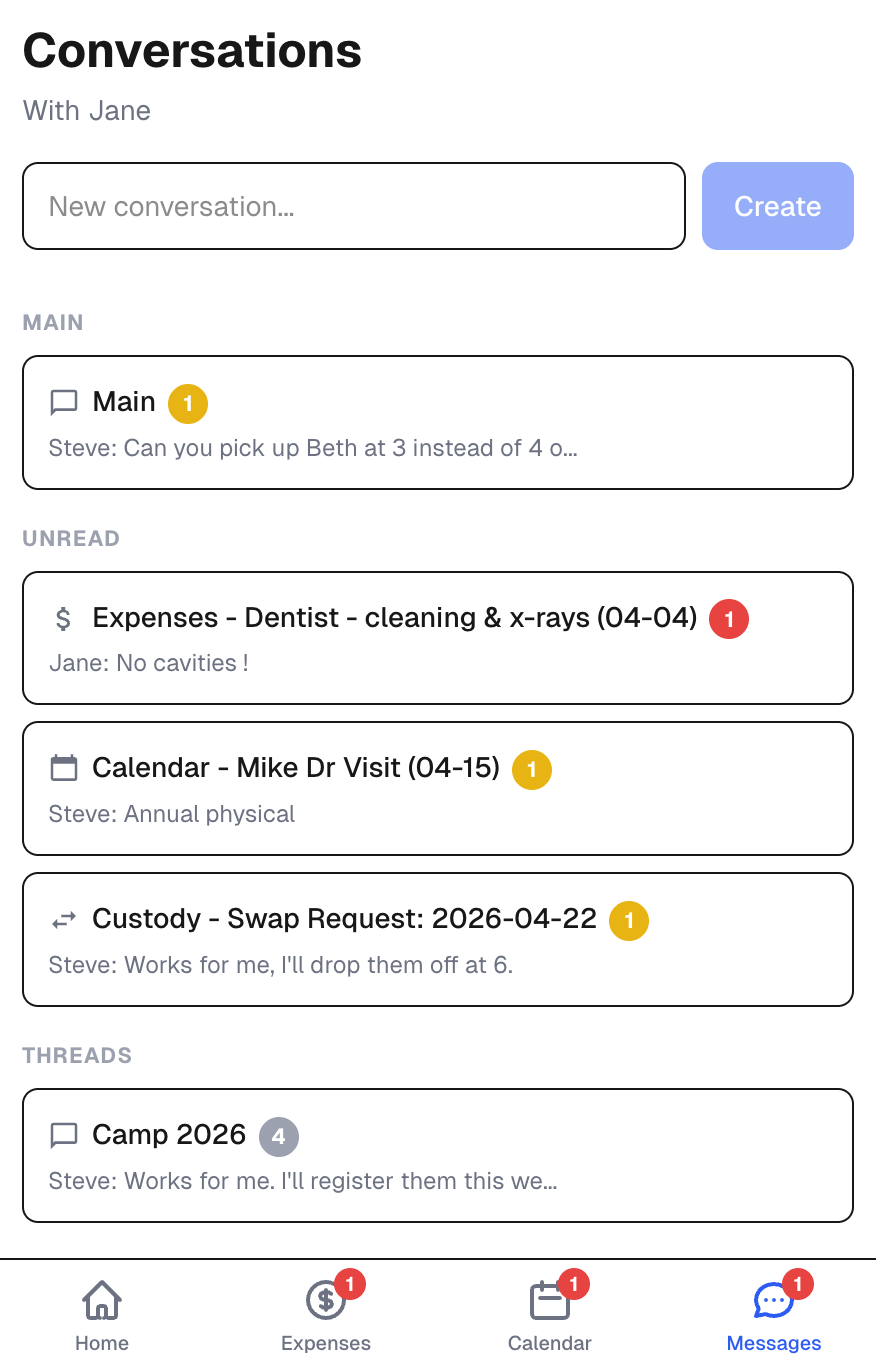
General thread
A shared general-purpose conversation between both parents for logistics and quick notes.
Custom threads
Create custom named conversation threads, like "Camp 2026", for specific topics that span multiple transactions or events.
Transaction & event notes
Each expense, support transaction, calendar event, and custody swap has its own notes thread. Open the item and scroll down to add context; the conversation stays attached to the record it belongs to.
Message badges
Badges show the read status of every conversation. Red means you have unread messages. Yellow means your co-parent hasn't read yours yet. Gray means both parties are caught up, a transparent record of who saw what, and when.
⚡ Solo mode
In solo mode, conversations become Notes, visible only to you. All messages show a gray badge since there's no co-parent to track read status with.
Reports
Generate a full report for any date range: a clean, printable document showing every transaction, its status, net effect, and running balance, across both ledgers.
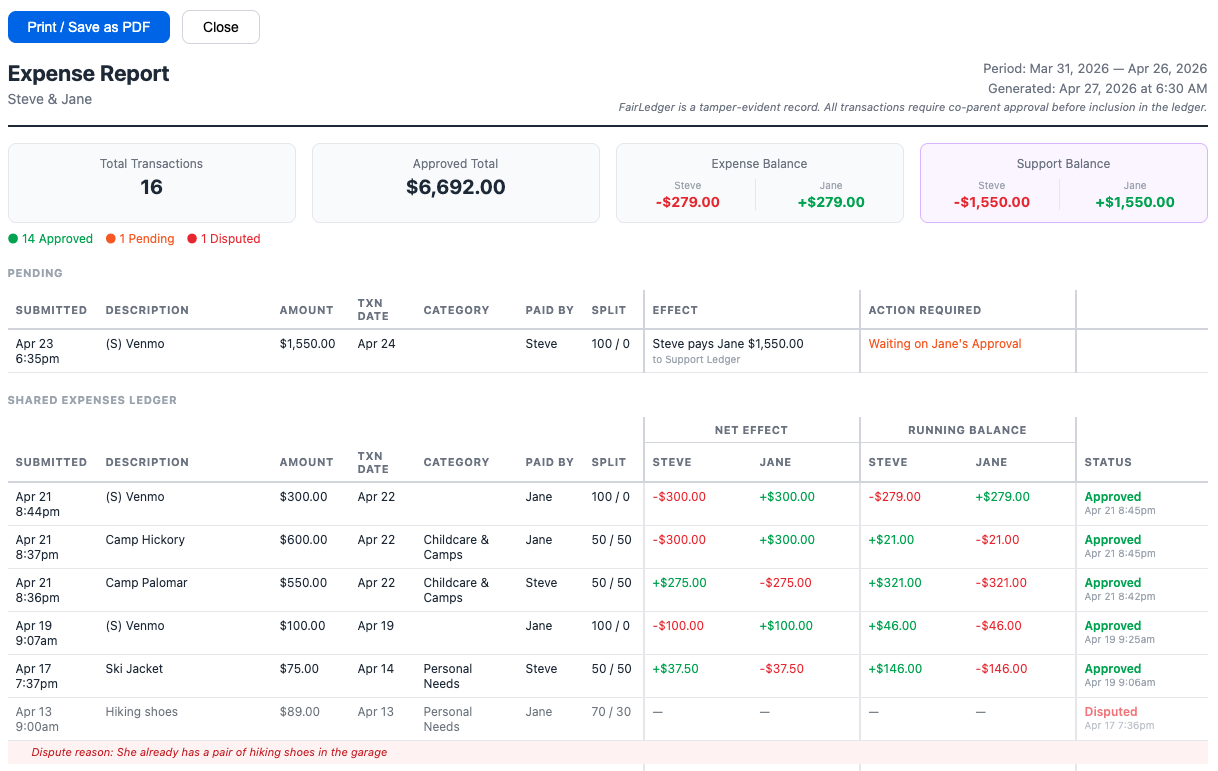
- Go to Settings → Reports, select a date range, and tap Generate.
- Reports open in a new browser tab and can be printed or saved as PDF.
- The Expense Ledger and Support Ledger are shown in separate sections.
- Disputed entries are marked and excluded from the balance.
- Category subtotals give a quick breakdown of where money went.
📋 For legal use
FairLedger reports show a tamper-evident record of submissions, approvals, verifications, and disputes. FairLedger does not provide legal advice; consult your attorney on how to present records in legal proceedings.
Documents / Family Records
A secure place to store and organize the documents that matter most — parenting plan, insurance cards, medical records, school documents, and more — accessible to both parents in one place.
How to access
Tap your avatar from the Dashboard to access the Account screen, then tap Documents / Family Records. Documents are organized into categories; tap a category to expand it and add or view files.
Categories
Insurance & Coverage
Health, dental, vision cards, EOBs, policy documents
Medical
Vaccination records, specialist reports, prescriptions
School
Enrollment forms, IEPs, report cards, school contacts
Legal / Parenting Plan
Court orders, parenting agreement, custody decree
💡 Why it matters
Having your parenting plan and insurance cards in FairLedger means both parents are always working from the same documents — no "I don't have that" when it matters most.
Tips & Best Practices
📸 Attach receipts immediately
Open the transaction right after saving and attach the receipt while you have it in hand.
📅 Enter expenses promptly
Submit expenses within a few days. A timely record is a more credible record.
💬 Use notes, not texts
Say it in FairLedger's notes, not a separate text thread. Keep the record together.
🔄 Set up recurring rules early
Anything that repeats monthly: support, daycare, after-school, should be a recurring rule.
📊 Run monthly reports
Generating a monthly report creates a regular checkpoint and catches discrepancies early.
⚖️ Dispute with context
When disputing, always include a clear reason; it becomes part of the permanent record.
Ready to get started?
Free 30-day trial. No credit card required. Invite your co-parent anytime.
⚡ Create your account →